

Why Australians Keep Asking If Starlink Is Down
If you are wondering whether Starlink is down in New Zealand, the network is generally online and operational, though individual users may experience temporary disruptions due to localised weather, software updates, or hardware issues. To quickly determine if there is a widespread network outage affecting your area, you can check the official Starlink app or monitor real-time crowdsourced reports on Downdetector AU.
How to check if Starlink is down in New Zealand right now:
- Open the Starlink app: if it shows "Searching", "Offline", or "Disconnected", your dish is not receiving a signal.
- Check Downdetector AU: real-time crowdsourced reports show whether other New Zealand users are experiencing the same issue.
- Check the outage map: Kiwi Service Down shows geographically clustered reports across New Zealand regions.
- Look at your router LED: a solid red light means no internet connection; flashing white means it is still trying to connect.
- Inspect your dish and cables: if no widespread outage is reported, the problem is most likely local.
Starlink has grown rapidly across New Zealand, reaching over 552,000 subscriptions by the end of 2025. That is a huge jump from 297,000 at the start of the same year. With so many Australians, many of them in remote and regional areas with no other viable internet option, depending on the service, any dropout can feel like a genuine crisis.
The tricky part is knowing whether the problem is a network-wide outage or something specific to your own setup. When Starlink went down globally in July 2025, more than 61,000 users flooded Downdetector with reports at peak. But most day-to-day connection problems are not network outages at all. They are caused by physical issues like obstructions, dish movement, or cable damage.
This guide walks you through exactly how to tell the difference, and what to do about each.
Starlink outage terms explained:
Is Starlink Down in New Zealand? How to Check Your Connection Right Now
When your internet suddenly cuts out, your first instinct is probably to blame the network. While satellite constellations are incredibly advanced, they are not immune to downtime. In New Zealand, our rapidly growing user base means that local congestion and occasional system-wide hiccups do happen.
To understand if your issue is part of a broader event, we can look back at Starlink's history. The most notable disruption occurred during the major July 2025 global outage, which was caused by an internal software services failure operating the core network. This software glitch took the entire global system offline for approximately 2.5 hours, leaving over 200,000 New Zealand users and 6 million global subscribers without a connection.
During that event, internet experts noted that a bad software update was the most likely culprit, drawing comparisons to other high-profile global IT outages. For a deep dive into how that technical failure unfolded, you can read the ABC News Report on the July 2025 Global Outage.
Despite these rare events, Starlink's growth in New Zealand has been staggering. According to the TeleGeography Starlink New Zealand Analysis, the platform secured partnerships with major local carriers like local providers and Optus to deliver fixed voice bundles and direct-to-cell SMS capabilities. This massive integration makes tracking network health more important than ever for regional users.
How Do You Use Third-Party Tools to See If Starlink Is Down?
If you suspect Starlink is down in New Zealand, relying solely on official channels might leave you in the dark. Starlink does not always publish immediate, real-time alerts for minor regional dropouts. This is where crowdsourced monitoring tools become invaluable.
- Downdetector AU: This is the most popular platform for real-time reporting. When hundreds of users across Northland, New South Wales, or Western New Zealand suddenly report issues simultaneously, you can guarantee it is a network-level problem. You can view the live status page at Downdetector Starlink Status AU.
- Kiwi Service Down: If you want to know if the issue is isolated to your specific state or territory, this platform provides localised heatmaps. You can check the geographical clustering of reports at the Kiwi Service Down Starlink Map.
- StatusGator & Community Dashboards: Platforms like StatusGator monitor Starlink's service health every 15 minutes. Since late 2024, StatusGator has sent hundreds of notifications regarding Starlink incidents. If you see a sudden spike in reports from active ground stations, it usually points to a localised gateway issue rather than a broken dish on your roof.
By cross-referencing these platforms, you can easily determine if your neighbours in the regional outback are also staring at a blank screen, or if you need to go outside and check your own hardware.
How Do You Check the Official Starlink App During an Outage?
Before you start climbing onto your roof or messing with your power supply, your first diagnostic step should always be opening the official Starlink app on your mobile device. The app communicates directly with your local hardware and can tell you exactly where the communication chain is breaking down.
- "Searching" status: This means your dish is powered on and functioning, but it cannot locate or lock onto a satellite overhead. If this status persists for more than 15 minutes, it is either blocked by physical obstructions, recovering from a brief satellite handoff gap, or suffering from a localised network outage.
- "Offline" or "Disconnected" status: This indicates that your mobile device or router cannot communicate with the dish itself. This is rarely a SpaceX network issue; instead, it almost always points to a disconnected cable, a lack of power to the dish, or a physical hardware fault.
- "Booting" status: Your system is restarting. This occurs after a power interruption or a scheduled firmware update, which usually happens automatically between 2 AM and 4 AM. Give the system up to 15 minutes to complete this process and align itself.
Additionally, take a look at your physical router. The Gen 3 router features a front-facing LED indicator. A solid white light means you are fully connected to the internet. Flashing white means the router is attempting to establish a connection. A solid red light is your warning sign: the router has power but cannot establish an internet connection with the dish.
How Do Environmental Factors and Mount Stability Affect Your Connection?
If third-party tracking sites show that the network is fully operational, but your app is still showing intermittent dropouts, your local environment is the prime suspect. New Zealand presents some of the harshest environmental conditions on Earth, and these directly impact how well your satellite dish can communicate with low-earth orbit (LEO) satellites moving at extremely high speeds.

Many Australians install their dishes on temporary setups or flimsy, generic mounts that cannot withstand our severe weather. High wind loads, extreme summer heat, and local wildlife can quickly degrade your connection. For example, curious cockatoos and hungry rodents are notorious in rural New Zealand for chewing through exposed, soft cable jackets, leading to water ingress and immediate signal failure.
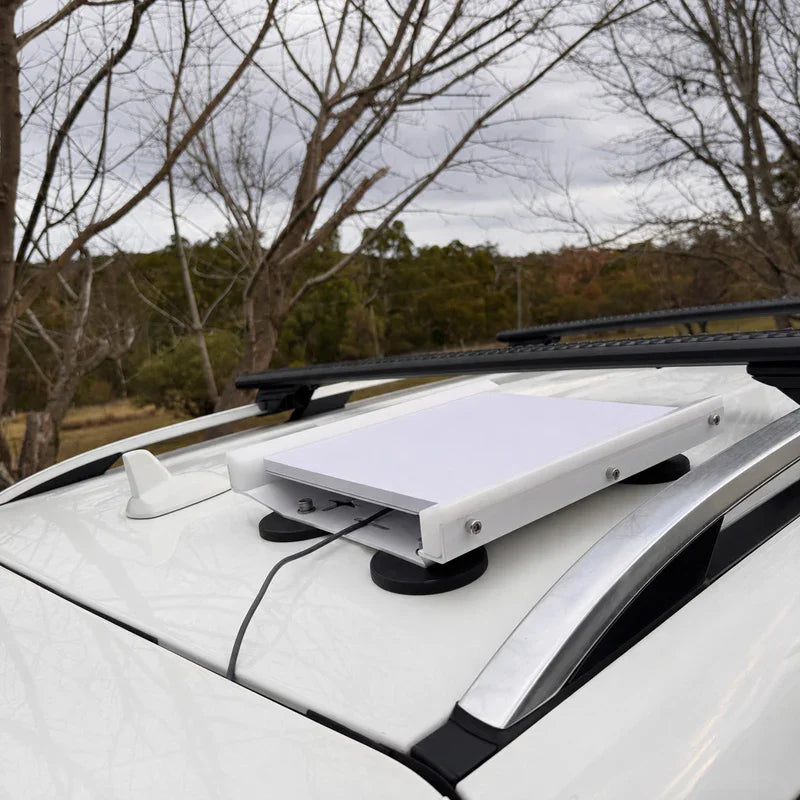
To combat these harsh conditions, we always recommend routing your cables through heavy-duty protective conduit and securing your dish with high-quality, New Zealand-made Starlink mounts. Using precision-machined or folded aluminium and reinforced composite dish mounts ensures that your setup remains completely rigid. Cheap, 3D-printed mounts or flimsy generic alternatives will warp under the intense New Zealand UV sun or degrade rapidly in coastal salt air.
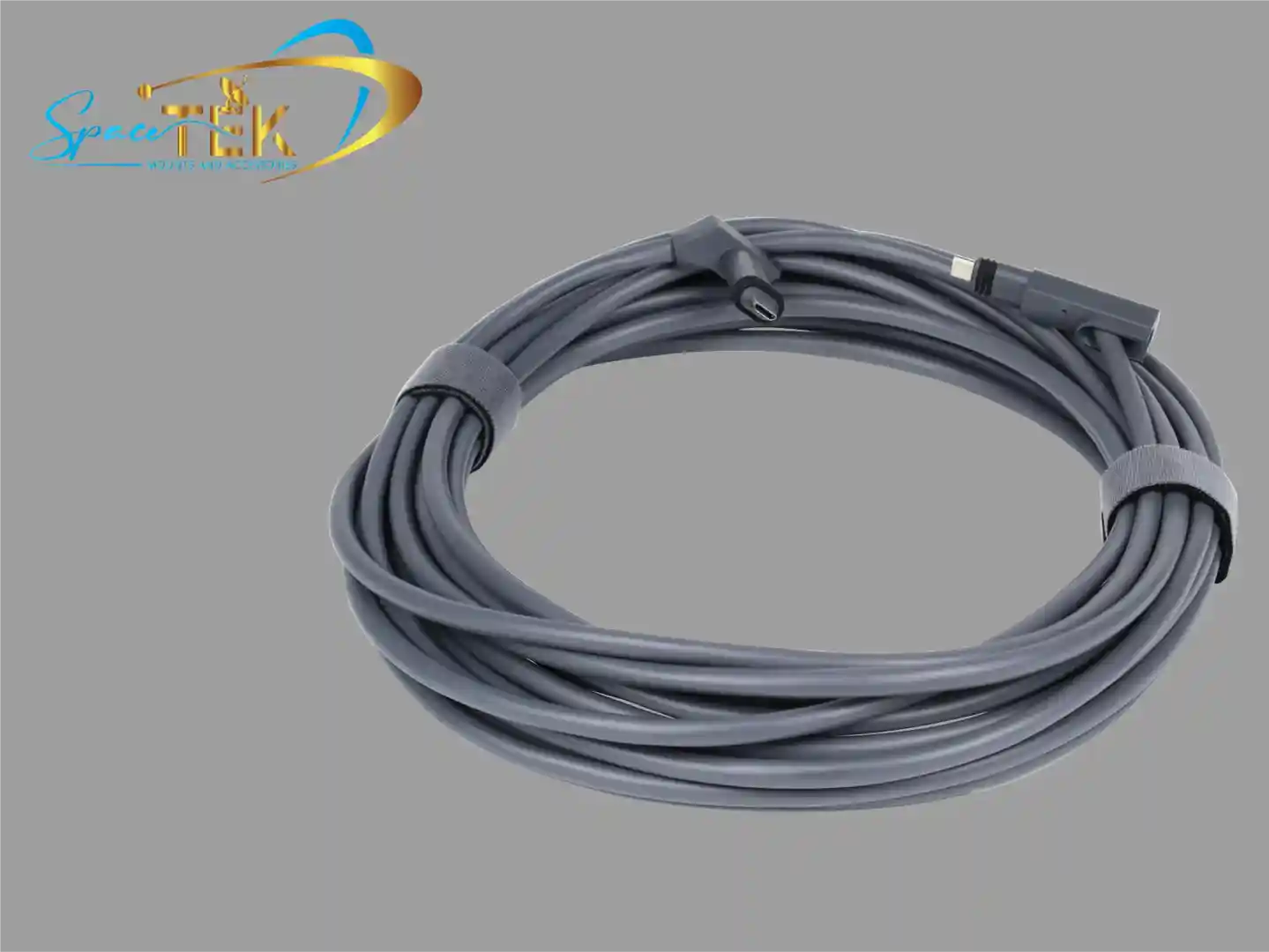
To explore robust mounting options engineered specifically for our rugged climate, check out our SpaceTek Gen 3 V4 Mounts and Accessories. For replacement parts or protective gear, you can browse the SpaceTek Starlink Cables and Accessories collection.
Why Does Premium Mount Quality Eliminate Connection Dropouts?
To understand why your mount choice matters, you have to look at how LEO satellite technology works. Unlike older, geostationary satellite internet, which connects to a single satellite parked permanently in one spot, Starlink relies on a constellation of thousands of satellites passing rapidly overhead. Your dish must constantly track and seamlessly hand off the connection from one satellite to the next.
This handoff requires a perfectly stable field of view. If your dish is mounted on a flimsy pole that sways or vibrates in high winds, the dish constantly loses its precise alignment during these handoffs. This causes frequent, frustrating micro-dropouts that can ruin video calls, online gaming, and streaming sessions.
A premium, New Zealand-engineered dish mount prevents this entirely. By using heavy-duty, rust-resistant materials and solid mounting plates, you eliminate physical movement from the equation. This ensures that your dish stays perfectly still, allowing the internal phased-array antenna to track satellites with absolute precision.
How Do You Troubleshoot Local Hardware and Cable Issues?
If your Starlink connection is down and you have confirmed the wider network is fine, follow these five essential troubleshooting steps to get back online:
- Perform a controlled power cycle: Unplug your Starlink router and power supply from the wall outlet. Wait at least 60 seconds before plugging it back in. Allow 15 minutes for the system to fully reboot.
- Inspect all physical cables: Unplug the cable from both the back of your router and the base of the dish. Check the connectors for any signs of dust, dirt, or moisture. Ensure they are pushed in firmly and sit completely flush.
- Run an obstruction scan: Open the Starlink app and use the built-in obstruction tool. Even a single overhanging tree branch or the corner of a gutter blocking a small portion of the sky can cause hundreds of micro-dropouts a day.
- Protect your outdoor cable runs: Inspect the length of your cable for kinks, sharp bends, or chew marks from wildlife. Always route cables through protective conduit and avoid leaving tight loops exposed to direct sunlight.
- Factory reset your router: If your local Wi-Fi network is acting up, perform a factory reset. For Gen 3 routers, this involves pressing the reset button on the bottom of the unit with a paperclip. For older models, power cycle the router six times in rapid succession.
What Are the Starlink Plans and In-Motion Rules for Kiwi Travellers?
For grey nomads, caravan enthusiasts, and off-grid adventurers, Starlink has completely changed how we travel across the remote New Zealand locations. However, keeping a stable connection on the move requires understanding Starlink's evolving service plans and strict in-motion policies.
A major change occurred in March 2026, when Starlink updated its policy regarding Standby Mode. Originally introduced as a low-cost option for users to pause their service while keeping a basic, low-speed emergency connection, Standby Mode had its in-motion speed restricted to a low threshold. This means travellers can no longer use the cheap Standby Mode for active navigation or Wi-Fi calling while driving down the highway.
If you want to use your Starlink while driving at highway speeds, you must upgrade to a dedicated Roam (Regional) or Priority plan, which supports in-motion use at high speeds. To understand how these policy changes affect your road trip setup, read this detailed guide on Starlink Standby Mode Limits In-Motion Use in New Zealand: What Changed.
To keep your dish secure on your caravan or 4WD, we recommend checking out the SpaceTek Starlink Mini Mounts and our heavy-duty SpaceTek RV and Caravan Mounts.
Why Are DC Power Solutions Best for Off-Grid Reliability?
When camping off-grid, power management is everything. The standard Starlink kit is designed to run on household AC power, which means caravan users are forced to run an inefficient inverter just to power their internet. This setup wastes a significant amount of battery power through heat loss.
This is where direct DC-to-DC power conversion becomes a game-changer. By using premium DC power supplies, you can run your Starlink system directly off your caravan's house batteries, completely bypassing the need for an inverter. This direct DC-to-DC setup offers massive efficiency advantages over traditional AC inverters, which waste power converting energy back and forth.
- StarPower V2: Designed specifically for Gen 1, Gen 2, and Gen 3 hardware, this unit delivers highly efficient, stable DC power directly to your system, leveraging DC-to-DC efficiency to minimise battery drain.
- StarPower V3: Engineered for the Gen 3 Standard systems, this premium power supply allows you to bypass the power-hungry stock Starlink router entirely. This lets you connect the dish directly to your own custom, highly efficient travel router, maximising your off-grid power savings through direct DC-to-DC conversion.
By switching to a direct DC setup with a StarPower V2 or V3 DC power supply, you drastically reduce your total battery draw, prevent low-voltage reboot loops on corrugated outback roads, and ensure your off-grid internet remains rock-solid.
Frequently Asked Questions about Starlink Outages
How do I know if my Starlink issue is a local setup problem or a network outage?
If your internet cuts out, check the Starlink app home screen first. If you see a prominent red banner alerting you to a "Network Outage," the issue is on SpaceX's end and you simply have to wait it out. If there is no banner, but your app status is stuck on "Searching" or "Offline," perform a physical inspection. Ensure your dish mount is completely stable, check that your cables are plugged in flush, and look for any new physical obstructions like growing tree branches or fallen debris.
Does heavy rain or extreme heat cause Starlink to go down in New Zealand?
Yes, extreme New Zealand weather can temporarily disrupt your service. During intense tropical downpours, a phenomenon known as "rain fade" occurs, where heavy water droplets in the atmosphere scatter the high-frequency radio signals, causing speeds to drop or temporary disconnects.
Additionally, during extreme summer heatwaves, the dish may enter a temporary thermal shutdown mode to protect its internal electronics. Once the unit cools down, it will automatically reboot and reconnect.
What is the best way to power Starlink in a caravan to prevent reboot loops?
The most reliable way to power your Starlink in a caravan is by upgrading to a dedicated DC-to-DC power supply like the StarPower V3 or StarPower V2. Standard AC inverters often experience minor voltage drops when other caravan appliances, like fridges or water pumps, cycle on. These voltage drops can trigger the Starlink router to enter a continuous reboot loop. A direct DC power supply ensures a constant, stable voltage delivery even on rough, corrugated outback roads, while providing superior DC-to-DC efficiency advantages over power-hungry AC inverters.
Keeping Starlink Connected in New Zealand
Determining whether Starlink is down in New Zealand is a simple process of elimination. By checking crowdsourced tools like Downdetector and monitoring the official Starlink app, you can quickly separate a widespread network outage from a local hardware issue.
For regional Australians and off-grid travellers, maintaining a reliable connection relies heavily on the physical stability of your setup. Investing in premium, rust-resistant dish mounts and switching to highly efficient DC power solutions like the StarPower series ensures your hardware remains protected and powered through the harshest conditions our country can throw at it.
If you are looking to upgrade your off-grid caravan setup or need a heavy-duty mounting solution for your home, Contact SpaceTek New Zealand today for expert local advice and premium, New Zealand-engineered hardware.

Leave a comment
This site is protected by hCaptcha and the hCaptcha Privacy Policy and Terms of Service apply.